iOS 26 is not like a small normal update. Apple changed many things in this version. Some changes are easy to notice, like the new design. Some changes are inside apps like Messages, Phone, Photos, Maps, Music, and Wallet.
So this article is only about iOS 26 features. I am not adding old iOS 16 features like basic Lock Screen customization, haptic keyboard, or old edit message options here. Because those are already old now.
If your iPhone supports iOS 26, you can try many new things. But some features may not work on every iPhone. Apple Intelligence features need supported iPhone models. Some features also depend on country, language, carrier, and app support.
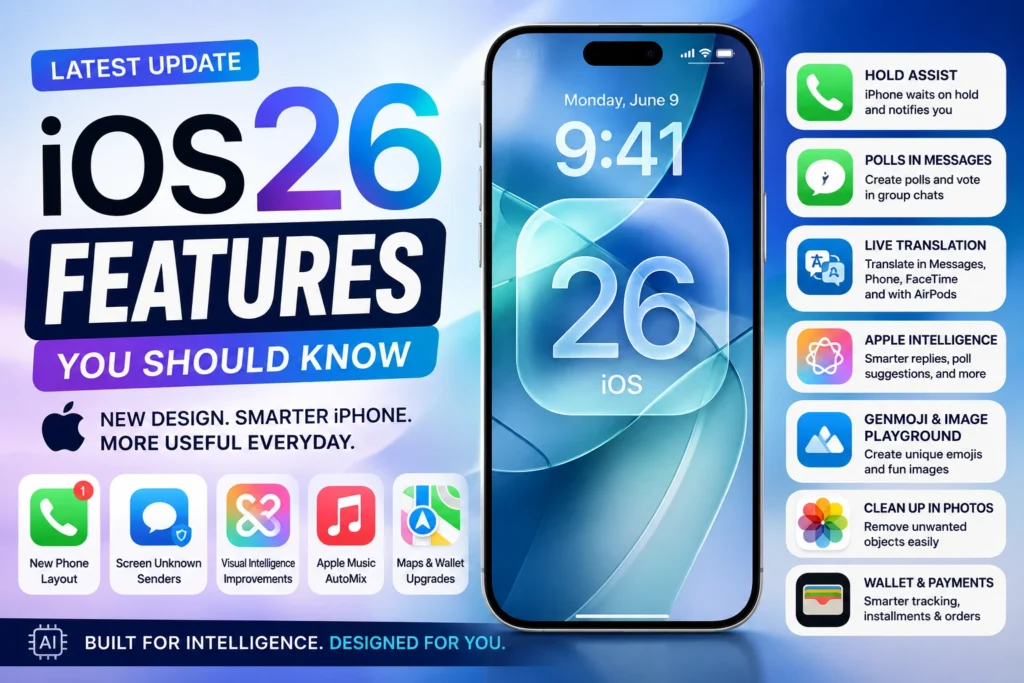
Hold Assist
Hold Assist is another useful Phone app feature in iOS 26. This helps when you call customer support and they keep you on hold. Instead of listening to hold music for 10 or 20 minutes, iPhone can wait for you and notify you when a live person is available.
This is very useful for bank calls, airline support, internet provider, online shopping support, and service center calls. Anyone who called customer care knows this pain. You keep phone near your ear, and they keep saying “your call is important to us”. Hold Assist makes that part little less irritating.
Availability may depend on country, carrier, and call type. So it may not work everywhere.
New Phone App Layout
The Phone app gets a new unified layout in iOS 26. Favorites, Recents, and Voicemail are brought together in one cleaner place. This can make calling history and voicemail easier to check. Instead of jumping between too many tabs, important calling details are more connected.
Some users may need time to adjust. Because when Apple changes a daily app layout, first few days feel different. But after using it, the new layout can feel more simple. Especially if you use voicemail and recent calls often.
Screen Unknown Senders in Messages
iOS 26 improves Messages by giving more control over unknown senders. Messages from unknown numbers can be kept in a separate area. This helps keep your main Messages list cleaner. Spam, random OTP messages, fake offers, and unknown numbers will not disturb the main inbox too much.
You can later check those messages and decide what to do. You can mark as known, ask for more information, or delete. This is useful because nowadays Messages app is full of OTP, delivery updates, offers, bank alerts, and random spam. A cleaner inbox is always better.
Polls in Messages
Polls in Messages is a very practical iOS 26 feature. It is useful mostly in group chats. For example, your friends are planning dinner. One person says biryani, another says pizza, another says dosa, then the chat becomes full. With polls, you can simply create options and let everyone vote.
This is useful for movie plans, meeting time, travel date, food choice, event planning, and family decisions. Group chats are fun, but decisions are messy there. Polls make it more organized.
Messages Backgrounds
iOS 26 also adds conversation backgrounds in Messages. You can make chats look more personal with different backgrounds. This is not a must-use feature, but it gives a fresh feel. You can keep one background for family chat, another for friends, and another for special conversation.
With Apple Intelligence, some users can also create custom backgrounds using Image Playground support, depending on device and feature availability. This is more of a fun and personalization feature. But many users like this type of small visual change.
Poll Suggestions in Messages
Apple Intelligence can also suggest polls in Messages in supported cases. If the chat looks like people are deciding something, iPhone may suggest creating a poll. For example, if people are discussing which day to meet or what food to order, poll suggestion can help.
This is a small smart feature, but useful in group chats. Because most group chat decisions become long and confusing. Again, this depends on Apple Intelligence support and language availability.
Smart Replies in Messages
iOS 26 brings smarter reply suggestions in Messages with Apple Intelligence support. It can suggest quick replies based on the conversation. This helps when you want to reply fast. Like confirming a plan, answering a simple question, or giving short response.
But don’t use Smart Reply for every serious message. Some replies need your own words. Especially when it is family issue, work issue, money matter, or emotional conversation. Smart Reply is good for small quick messages only.
Apple Intelligence in Shortcuts
Shortcuts becomes more powerful in iOS 26 because Apple Intelligence can work with it in supported devices. This means you can create smarter automations and actions. For example, you may use AI-powered actions for text, summaries, or other tasks inside shortcuts.
This is more useful for advanced users. Normal users may not use Shortcuts daily, but creators, students, and productivity users can do more with it. If you already use Shortcuts, iOS 26 gives more power. If you never used Shortcuts before, start with simple automation first. Don’t jump into complex things.
Visual Intelligence Improvements
Visual Intelligence gets better in iOS 26. It can help you understand what is on your screen or around you. For example, you can identify places, plants, animals, or event details from a flyer. It can also help you do more with things you see on the screen.
This is useful when you want quick information without typing a full search. You see something, iPhone helps you understand it. But still, this is AI-based help. It may not be perfect every time. For normal quick information, it is useful. For serious decision, check properly.
Genmoji and Image Playground Updates
iOS 26 improves Genmoji and Image Playground. These are Apple Intelligence features for creating fun images, emojis, and more personal visual content. Genmoji is useful when normal emoji is not enough. You can create a custom emoji style image based on what you want.
Image Playground can help create images in supported styles. This is useful for Messages, fun posts, and creative sharing. This is not a serious work feature for everyone. But for people who like custom stickers, emojis, and fun visuals, it is a nice update.
Clean Up in Photos
Clean Up in Photos helps remove unwanted objects from a photo. If you took a nice picture but something distracting is in the background, Clean Up can help remove it. This is useful for travel photos, product photos, family photos, and social media pictures.
For example, if a dustbin, random person, wire, or small object is spoiling your photo, you can try Clean Up.
It works better when the background is simple. If the background is too complex, the result may not look perfect. Still, for many normal photos, it is helpful.
Natural Language Search in Photos
Photos search becomes smarter in iOS 26 with Apple Intelligence support. You can search using more natural words.
For example, instead of just searching “dog”, you can search something like “photos of my dog at the beach” or “screenshot of flight details”. This helps when you have thousands of photos and don’t want to scroll endlessly.
Many people don’t use Photos search properly. They just scroll for long time. In iOS 26, search becomes more useful, especially if your device supports Apple Intelligence features.
AirPods Camera Remote
iOS 26 adds AirPods Camera Remote support for AirPods and AirPods Pro with H2 chip. You can start recording video in the Camera app by pressing and holding your AirPods stem. This is useful if you record videos alone. For example, vlog, reel, exercise video, cooking video, or product video.
You can keep your iPhone on a stand and start recording without touching the phone. That makes recording easier. This feature needs supported AirPods. So check your AirPods model before expecting it.
High-Quality Audio Recording With AirPods
iOS 26 also supports better audio recording during video calls and high-definition recording in Camera with supported AirPods and AirPods Pro models. This is useful for creators and people who record video often. Audio quality matters a lot. A video with bad audio feels low quality even if the camera is good.
If you use iPhone for reels, YouTube, online classes, or video calls, this kind of audio improvement can help. Again, supported AirPods model is needed.
Apple Games App
iOS 26 brings a new Apple Games app. It is a single place for your games. You can continue games, find new games, see friends, and manage gaming activity in one place. This is useful for users who play games on iPhone. If you use Apple Arcade, it can also make game discovery easier.
For non-gamers, this app may not matter much. But for people who play games daily, it gives a more organized place.
Games App Improvements in iOS 26.2
In iOS 26.2, the Games app also gets more improvements. You can sort games by size, and challenge score banners can show real-time updates. This is useful if you have many games installed. Sorting by size helps when storage is low, because games can take a lot of space.
Real-time challenge updates are useful for people who play with friends and like score competition. Not every user needs this, but gamers may like it.
Offline Lyrics in iOS 26.2
iOS 26.2 adds offline lyrics support in Apple Music. This means you can see lyrics even when Wi-Fi or mobile data is not available, if the song and lyrics are already available for offline use.
This is useful during travel, flights, low network places, or when you save songs for offline listening. Small feature, but music users will like it.
Wallet Boarding Pass Updates
Apple Wallet gets refreshed boarding passes in iOS 26. Boarding passes can show more useful travel details and Live Activities for flight updates. This is useful for people who travel by flight. You can see updates like flight status more easily.
Wallet can also connect travel-related details with Maps and Find My in supported cases. For example, airport navigation or luggage location support may be shown where available. This makes Wallet more useful than just storing tickets.
Order Tracking in Wallet
iOS 26 also includes order tracking improvements in Wallet with Apple Intelligence support in available regions. This helps users keep track of orders in a more organized way. If you shop online often, order tracking inside Wallet can reduce the need to open multiple apps or emails.
But availability may depend on country, store support, and Apple Intelligence feature support.
Maps Preferred Routes
Apple Maps in iOS 26 can learn your preferred routes and help with route suggestions. If you travel the same way often, like home to work or home to college, Maps can be more helpful. It can also help with delay information and route-related updates.
This is useful for daily travel. You may already know your road, but traffic changes every day. A route warning can save time. This feature depends on location services and Maps availability in your region.
Visited Places in Maps
iOS 26 can also help remember visited places in Maps. This is useful when you visited a shop, hotel, office, or travel spot and later forgot the name or location. Many times we go to a place and after few days someone asks where it was. Then we search in memory and fail.
Visited Places can help in that situation. But if you don’t like location history, check your Maps and privacy settings. Useful feature, but privacy choice is important.
CarPlay New Design
CarPlay gets a new design in iOS 26. It is made to feel cleaner and safer while driving. Messages in CarPlay also support Tapbacks, so you can quickly respond without full typing. Widgets and Live Activities can also show useful information on the dashboard.
This is useful if you use CarPlay daily. You can check important things at a glance without touching the phone too much. While driving, less distraction is always better.
Reminders Alarm in iOS 26.2
iOS 26.2 adds an option to make a reminder behave more like an alarm when it is urgent. This is very useful. Because normal reminder notifications are easy to miss. But some tasks need stronger alert.
For example, medicine time, bill payment, pickup time, meeting preparation, or travel reminder. For those, urgent reminder alarm is better. This makes Reminders more practical for important tasks.
Freeform Tables in iOS 26.2
Freeform gets table support in iOS 26.2. You can add tables with text, images, documents, and drawings. This is useful for planning, study notes, project ideas, content planning, and visual organization.
Freeform is not used by everyone, but if you like brainstorming and planning on a canvas, tables make it more structured. It is good for people who want both free layout and organized data.
Enhanced Safety Alerts
iOS 26.2 adds Enhanced Safety Alerts in some regions. This can improve alerts for things like earthquake alerts or imminent threat warnings. In supported areas, it can show richer information and improve alert delivery using location.
This is a safety feature. You may not use it daily, but during emergency it can matter. Feature availability depends on country and local alert systems.
End-to-End Encrypted RCS in iOS 26.5
iOS 26.5 adds support for end-to-end encrypted RCS messaging in beta with supported carriers. This is one of the important updates for iPhone and Android messaging. RCS already improves texting between iPhone and Android compared to old SMS/MMS. With encryption support, chats can become more secure where supported.
This will roll out over time, so not everyone may get it immediately. Carrier support is also needed. If your family or friends use Android, this is a good update. It makes cross-platform messaging better and safer.
Pride Luminance Wallpaper in iOS 26.5
iOS 26.5 adds a downloadable Pride Luminance wallpaper. It gives a colorful light effect and adds one more official wallpaper option. This is mostly a personalization update. If you like colorful wallpapers, you can try it.
Wallpaper is not a big system feature, but many users enjoy fresh looks after an update. Sometimes small visual changes make the phone feel new again.
Security Updates in iOS 26.5
iOS 26.5 also includes bug fixes and security updates. This part is not flashy, but it is very important. Many users only care about new features. But security updates protect your phone from known issues and vulnerabilities.
So don’t ignore updates just because there is no big visual change. If your iPhone supports the update, keeping iOS updated is always better. Before updating, keep battery charged and take backup if your data is important.
Final Words
iOS 26 brings many new changes. Some are visual, like Liquid Glass design and new Lock Screen look. Some are useful daily, like Call Screening, Hold Assist, Polls in Messages, Preview app, and better Photos search.
Apple Intelligence features like Live Translation, Visual Intelligence, Smart Reply, Clean Up, and Shortcuts actions are useful, but they need supported devices and supported languages. So don’t worry if every feature is not available on your iPhone.
If you want to try only the best iOS 26 features first, start with Call Screening, Hold Assist, Messages polls, Live Translation, Photos Clean Up, Preview app, Apple Music AutoMix, and RCS encryption if supported.
Use only the features that help your daily life. No need to turn on everything. A good iPhone setup is not about using every feature. It is about using the right features for your need.