Gmail is one app many people open every day. But honestly, most people use Gmail only for reading email and sending reply. That’s all.
But Gmail has many small features inside it. Some features can save time. Some features can help you write better emails. Some features can keep your inbox clean. And some features are useful when you send important or private mail.
Email is still very important nowadays. For job applying, client work, college work, business talks, official proof, invoice, meeting update, all these things mostly come in email only.
So if you use Gmail in a better way, it can help you lot. Not like one magic trick. But slowly your email work becomes clean and easy. In this article, let’s see the best Gmail features in simple words.
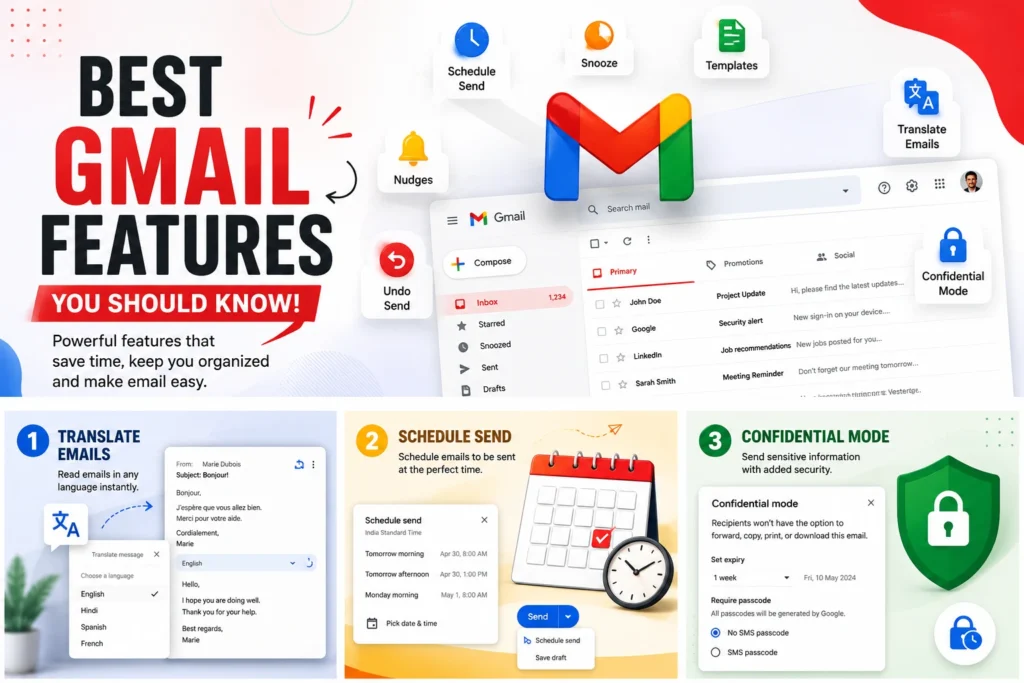
Translate Emails
Sometimes we receive email in another language. Maybe from a client, company, friend, or any website. In that time, we usually copy the text and paste it in Google Translate. But Gmail already gives translate option.
You can open the email, click the three-dot menu, and choose translate message. Then select the language you want. Gmail will translate the email inside Gmail itself. This is very useful if you work with people from another country. Also useful for students and freelancers.
But one thing, don’t trust translation blindly for very important mail. Like agreement, payment issue, job offer, legal matter, or anything serious. Translation can help you understand the meaning, but still read carefully. For normal emails, it is very helpful. It saves time.
Gmail Templates
If you are sending same email again and again, then Gmail templates can save your time. For example, you are sending job application mail. Or client follow-up mail. Or “thank you for contacting us” mail. Or same reply to customers. Writing same thing every time is waste of time.
You can create one email format and save it as template. After that, whenever you need, you can insert that template and change only small details. To use templates, first you need to enable it from Gmail settings. Go to Settings, then See all settings, then Advanced, and enable Templates.
After that, write your email, click the three dots in compose window, go to Templates, and save it. But don’t use template like a robot. Add the person name. Change few lines. Make it feel normal. Because if the email looks fully copied, people can understand.
Also, if you use email signature, remove signature before saving template. Otherwise, when you use the template, signature may come two times.
Schedule Send
Schedule emails in Gmail is one of the best Gmail features. This one is very useful for office work and professional email.
Sometimes you write an email at night. But sending mail at 12 AM or 1 AM may not look good. So you can schedule it for morning. In Gmail, when you write email, don’t click normal Send. Click the small arrow near Send button. Then choose Schedule send.
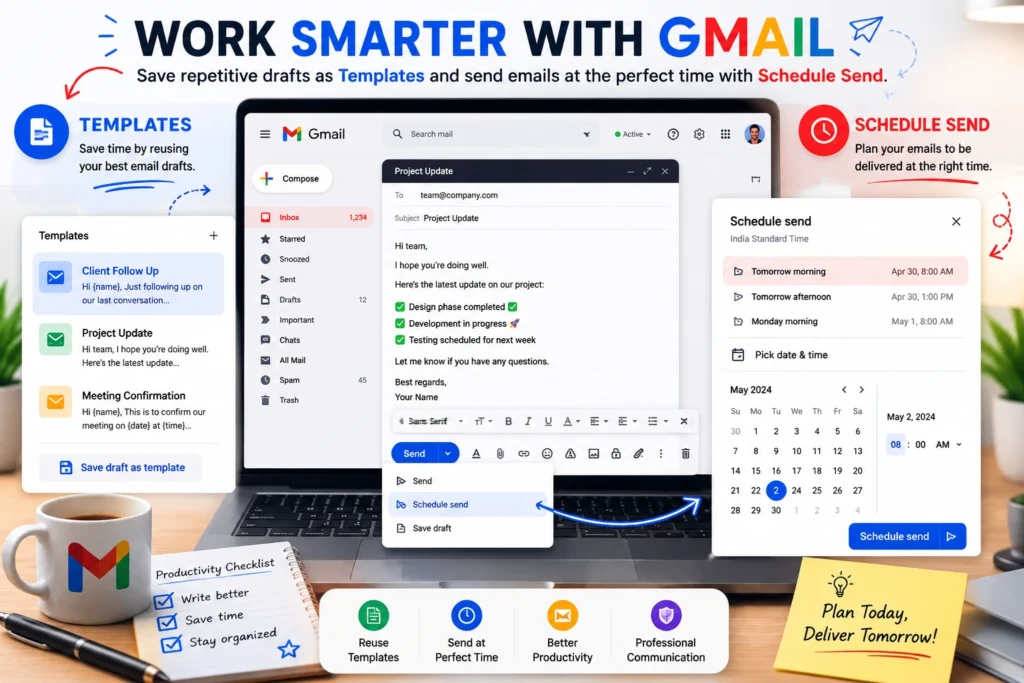
You can select tomorrow morning, Monday morning, or choose your own date and time. This is very helpful for job applications also. You can write the email when you are free and schedule it for proper time.
It is also useful for birthday wishes, reminders, client follow-up, meeting mail, and work updates. One small thing to remember. If you are sending to another country person, check time zone. Because your morning may not be their morning.
Snooze Email
This feature is very useful if you forget emails easily. Sometimes one email comes, but you cannot reply now. Maybe you are busy. Maybe you need to check something first. But if you leave it, it goes down in inbox and you forget.
So you can snooze that email. When you snooze an email, Gmail hides it for now and brings it back later. Like tomorrow, next week, or any custom date and time you choose. For example, you receive a bill payment email. But you want to pay after two days. You can snooze it for that day. Gmail will bring it back to top of inbox.
This feels like Gmail is reminding you at the right time. You can snooze from inbox by hovering over the email and clicking the clock icon. You can also snooze after opening the email. Simple feature. But very useful for daily email work.
Nudges
Nudges is like Gmail telling you, “Hey, you forgot this email.” Sometimes you receive an email and forget to reply. Gmail may bring that email back to top and show reminder. Also, if you sent one email and the person did not reply, Gmail may remind you to follow up.
This is useful for job seekers, freelancers, business people, and office workers. Because follow-up is important. Many times we don’t get reply, and we simply forget. Gmail nudges can help you remember. You can turn it on or off from Gmail settings. Some people like it. Some people don’t like extra reminders. So keep it based on your need. But for important mail follow-up, this feature is good.
Detailed Contact View
This is a small Gmail feature, but useful. When you hover over someone’s name in Gmail web, Gmail shows a small contact card. You can see their email, contact details, recent emails, and some quick options.
You can also open detailed view and see more interaction with that person. This is useful when you want to remember who that person is. Maybe one client mailed you after many months. Or one recruiter replied. Or one old customer sent mail again.
Instead of searching manually, this contact view can help you quickly. You can also start email, chat, Meet, or calendar event from there if options are available. For normal users, it may not look like a big feature. But when you handle many emails, it saves time.
Summarize Long Emails
Long email threads are very tiring. One person replies. Then another person replies. Then again someone adds one line. After 20 replies, you don’t even know what is final decision. In supported accounts, Gemini can summarize long email threads. It can show the main points quickly.
This is very useful for office work, project discussion, client work, travel plan, event planning, or any group email. But still, if the mail is important, read the main email also. Summary is only for quick understanding.
For example, if it is about payment, deadline, contract, or job interview, don’t depend only on summary. Check the actual email before replying. AI summary saves time, but human checking is still needed.
Smart Compose
Smart Compose is the feature where Gmail suggests words while you type. You start typing something, and Gmail may complete the sentence. If the suggestion is correct, you can accept it.
For example, you type “Please find…” and Gmail may suggest “attached the document.” This saves small time again and again. It is very useful for common email lines. Like thank you lines, meeting lines, attachment lines, and closing lines.
Some people like this feature. Some people feel it disturbs while typing. If you don’t like it, you can turn it off from Gmail settings. But for fast email writing, Smart Compose is good.
Confidential Mode
Confidential Mode is used when you want to send sensitive email. In the compose box, you can see a small lock icon with clock. Click that and you can set expiry date for the email. You can also add passcode option.

After the expiry date, the receiver cannot open the email normally. Gmail also stops forward, copy, print, and download options. This is good for private information, temporary login details, personal document, or sensitive office details.
But don’t think this is full protection. Because anyone can still take screenshot or take photo using another phone. So use it wisely. Confidential Mode gives extra control, but it is not perfect security. For very serious documents, use more safe method also.
Smart Reply
Smart Reply gives small reply suggestions below email. For simple emails, it is enough. Like “Thanks”, “Sounds good”, “I’ll check it”, or “Sure”. This is useful especially in Gmail mobile app. You can reply faster without typing full message.
But use it carefully. If someone sends serious email, don’t just tap one small reply. It may look careless. For business mail or job mail, write proper reply. Smart Reply is good for small and casual confirmation emails.
Undo Send
Undo Send is one of the most important Gmail features. Many times we click send and then immediately notice mistake. Wrong attachment. Missing attachment. Wrong spelling. Wrong person. Or sometimes the message tone is not good.
Gmail gives Undo option after sending email. If you click it quickly, the email comes back to draft. In Gmail settings, you can set undo time up to 30 seconds. Better keep it 30 seconds. Because those few seconds can save you from big mistake.
But after that time is gone, you cannot pull back the email. So for important email, always check before sending. Check recipient, subject, attachment, and message. Undo Send is helpful, but it is not a reason to send email carelessly.
Manage Subscriptions
Promotional emails are one big headache. Shopping sites, coupon sites, apps, newsletters, offers, social media updates, and many websites keep sending emails. Slowly inbox becomes full.
Gmail has Manage subscriptions feature for some users. It helps to see subscription emails and unsubscribe more easily. This can make inbox clean. But before unsubscribing, check properly. Some important services also send regular emails. Like bank, hosting company, domain provider, course website, job portal, or payment app.
Don’t unsubscribe important sender by mistake. If you don’t have Manage subscriptions option, you can still open promotional email and click unsubscribe link near sender name or bottom of email.
Labels
Labels are like folders, but little better. In Gmail, one email can have more than one label. So you can organize emails in better way. For example, you can create labels like Job, Clients, Bills, Orders, College, Website, Freelance, Important, or Family.
If you get many emails daily, labels will help you find mails later. For example, all job application replies can go under Job label. All invoice emails can go under Bills label. Don’t create too many labels in starting. Keep only important ones. Otherwise labels also become messy. Start with 4 or 5 labels. Then add more only when needed.
Filters
Filters are one of the strongest Gmail features. With filters, Gmail can automatically organize emails. For example, emails from one client can directly get Client label. Invoice emails can go to Bills label. Newsletter emails can skip inbox and go to Reading label.
This saves lot of manual work. You can create filter using sender email, subject words, contains words, attachment, and other options.
For example, if all your bank statement emails have same subject word, you can create filter for that. After that Gmail will do the work automatically. Labels and filters together can make your inbox much cleaner.
Google Meet and Chat Inside Gmail
Gmail is not only email now. It also connects with Google Chat and Google Meet. If you use Gmail for work, this is helpful. You can start chat, join meeting, or discuss something without leaving Gmail.
For example, one email discussion becomes too long. Instead of replying 10 times, you can start a quick Meet call. For personal users, this may not be very important. But for office and team work, it saves time. Gmail is slowly becoming a communication center, not only email inbox.
Gemini in Gmail
Gemini is now coming into Gmail for many users. This is one of the new useful side of Gmail. Gemini can help you write emails, improve your draft, summarize long email threads, and find details from your mailbox.
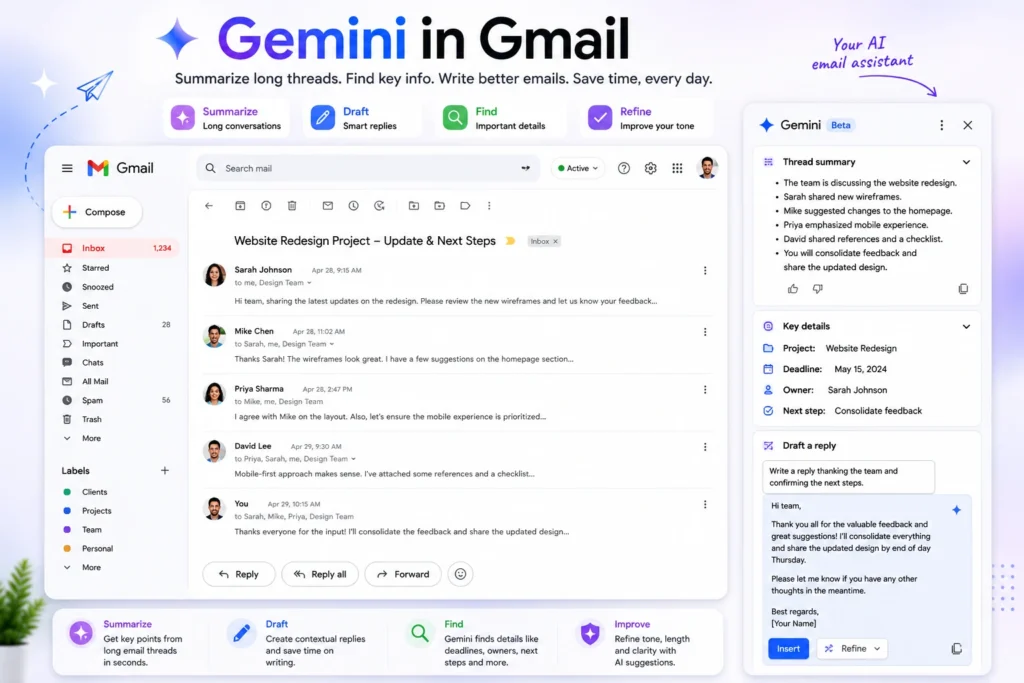
For example, you can type simple instruction like, “Write a polite follow-up email for interview.” Gmail can create a draft for you. You can also make the email more formal, more short, or more friendly. This helps when you don’t know how to start the email. Many people struggle with first line only. After that they can edit.
But don’t send AI-written email directly. Always read it. Change words. Add your real details. Make it sound like you. Because if the mail is too perfect and too general, it may look fake. Also, Gemini features may not show for every Gmail account. It depends on account type, country, plan, and Google settings.
Multiple Email Accounts in Gmail App
Gmail app can handle more than one email account. You can add personal Gmail, work Gmail, Outlook, Yahoo, or other email accounts also. This is useful if you don’t want to install many email apps. But be careful when sending email. Always check from which account you are sending.
Sometimes people send office mail from personal email by mistake. Or personal mail from work account. That can create problem. So multiple account feature is useful, but use it carefully.
Final Words
Gmail has many useful features. But most people use only basic send and receive. If you start using features like Schedule Send, Snooze, Templates, Translate, Undo Send, Labels, Filters, Nudges, and Confidential Mode, Gmail becomes much easier.
Also new AI features like Gemini can help with writing and summarizing emails. But use AI as helper only. Don’t send everything without checking. The best way is not to learn all features in one day.
First set Undo Send to 30 seconds. Then try Schedule Send. Then create one template. After that use Labels and Filters. Slowly try Snooze and Nudges. That is enough. Email is still your first impression in many places. Job, business, client work, college, and official communication all need good email habit.
So Gmail features are not only for tech people. They are useful for normal people also. If you use it properly, you can save time and avoid many small mistakes.