If you are trying to become an instructional designer, then one doubt will come very fast. Which tool should I learn first?
Because when you search online, you will see many names. Storyline, Rise, Canva, Captivate, LMS, Vyond, Camtasia, Figma, Illustrator, and many more. At first it feels like you need to learn everything. But actually no.
Instructional design is not only about software. Tool is only one part. Main work is understanding learner problem and making the learning easy. But yes, without tools also you cannot build the final course properly.
So this article is mainly for beginners and also for people who already work in learning design. Here we can see important instructional design tools in simple words. Not too much technical, just what the tool is used for and why it is useful.
Articulate Storyline 360
Articulate Storyline 360 is one of the most common tool in instructional design jobs. If you check many job posts, this name will come again and again.
It is used to create interactive eLearning courses. You can make normal slide type lessons, quiz, drag and drop, click and reveal, branching scenario, software style training, and many custom activities.
The good thing is, Storyline feels little close to PowerPoint in the beginning. So if you already used PowerPoint, you will not feel fully lost. You can add slides, text, images, buttons, and make simple course.
But after that, the tool becomes deep. Triggers, layers, variables, conditions, custom navigation, scoring, and other things can take time to learn. So Storyline is easy to start, but difficult to master fully. That is the honest thing.
For beginner, don’t try to create a very complex game in Storyline first. Start with small course. Add some interactions. Add quiz. Then slowly learn more. If you want to build instructional design portfolio, Storyline is very useful. One good Storyline project can show your skill better than just saying “I know eLearning”.
Articulate Rise 360
Articulate Rise 360 is also from Articulate, but it is different from Storyline. Storyline gives more control. Rise gives more speed. That is the simple difference. Rise is good for making mobile-friendly online courses very fast. It has ready blocks. You can add text, image, video, accordion, tabs, process, flashcards, quiz, and many other blocks.
You don’t need to design every screen from blank page. Rise already gives a clean layout. You only need to put your content properly. This is very useful for company training. Like onboarding course, HR policy, basic safety training, product introduction, compliance course, or quick learning module.
But Rise has one limit. You cannot customize everything like Storyline. Sometimes you may feel, “I want this button here” or “I want this interaction in different style”. Rise may not allow that much. Still, for many real company works, Rise is enough. Because most teams want clean course, fast delivery, and mobile friendly view.
For beginners, Rise is one of the easiest tool to learn. You can create a good looking course even without strong design skill.
Adobe Captivate
Adobe Captivate is another old and known tool in eLearning field. Many people use it for software training and responsive course creation. Captivate is useful when you want to teach step-by-step software process. Like how to use one company software, how to fill a form, how to use CRM, or how to complete online task.
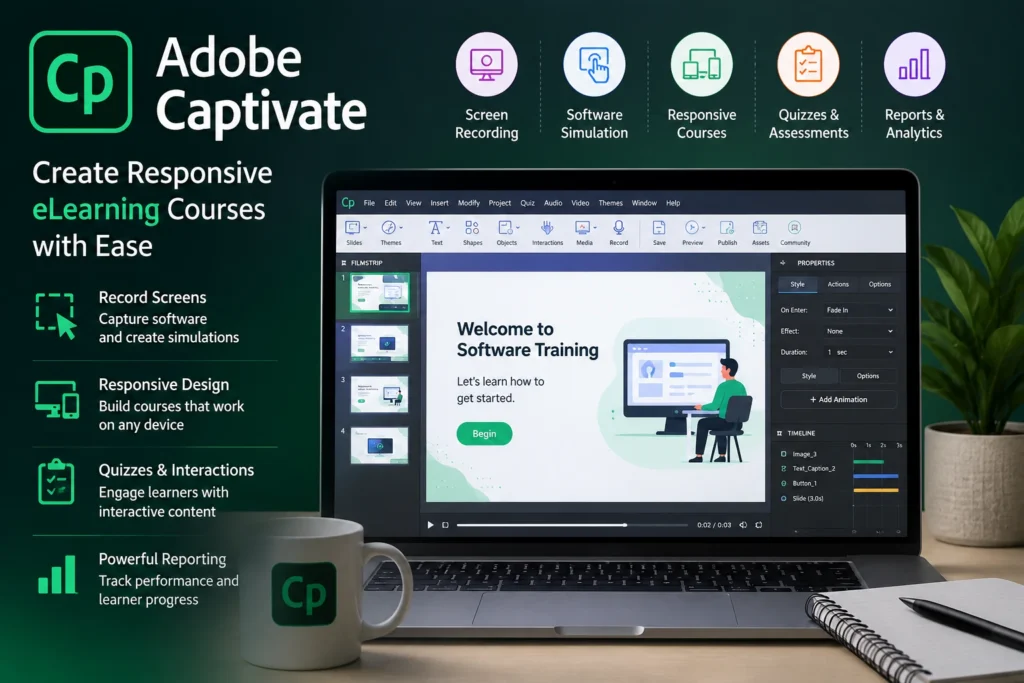
It can record screen and make simulation type learning. So learner can watch the process and also try the steps. This kind of training is useful in IT companies, product companies, banking, admin work, and many office training situations.
But Captivate is not the easiest tool for every beginner. Some people learn it fast. Some people feel it is little confusing in starting. So my simple suggestion is this. If your job or career target needs software simulation, learn Captivate. Otherwise, first learn Storyline and Rise, then come to Captivate later.
iSpring Suite
iSpring Suite is good for people who already know PowerPoint. This tool works with PowerPoint and helps to convert slides into eLearning courses. You can add quiz, narration, video, screen recording, and publish the course for LMS.
Many companies already have PowerPoint training files. Instead of creating everything again from zero, iSpring can help to make those slides more like online course. It is not as flexible as Storyline. But it is easier for many people.
For example, if you have a 30-slide training deck, you can add voice, small quiz, and publish it as eLearning. For small team, this is very helpful. So iSpring is not a fancy tool. But it is practical. And many real projects need practical tools only, not always advanced tools.
Canva
Canva is one tool almost every beginner can start quickly. You can create course banners, infographics, job aids, posters, certificates, presentation slides, thumbnails, workbook pages, and many learning materials.
The main reason people like Canva is simple. It has ready templates. You don’t need to start from blank white page. You can take a template and change text, image, color, icons, and layout.
For instructional designers, Canva is useful because many times you need small visual support. Maybe one checklist. Maybe one process image. Maybe one course cover image. Maybe one learner handout. In that time, opening heavy design software is not needed. Canva can do it fast.
But don’t fully depend on Canva templates only. Because many people use same templates. So try to change it little. Use your own color, spacing, icons, and style. Canva is best for fast design work. For beginner, it is a very good tool.
Adobe Illustrator
Adobe Illustrator is mainly for vector graphics. It is not a course building tool. But it is useful when you want to create clean learning visuals. You can create icons, diagrams, infographics, process flow, printable job aids, and many custom graphics.
For example, if you are creating machine safety training, you may need warning icons or process diagram. If you are creating medical training, you may need simple body diagram. If you are creating software course, you may need UI icons.
Illustrator can help in these works. But it is not easy like Canva. It has many tools and options. So for beginner, don’t try to learn all Illustrator tools. Learn only what you need. Learn how to edit icons, change color, create basic shapes, align objects, export PNG or SVG. That is enough for starting.
If Adobe price is high, you can also check Affinity Designer or Inkscape. But in professional design side, Illustrator is still a strong tool.
Figma
Figma is mostly known as UI design tool. But instructional designers can also use it. It is useful for planning course screen design before building in Storyline or other tool. You can design layout, buttons, colors, screen flow, and interaction idea.
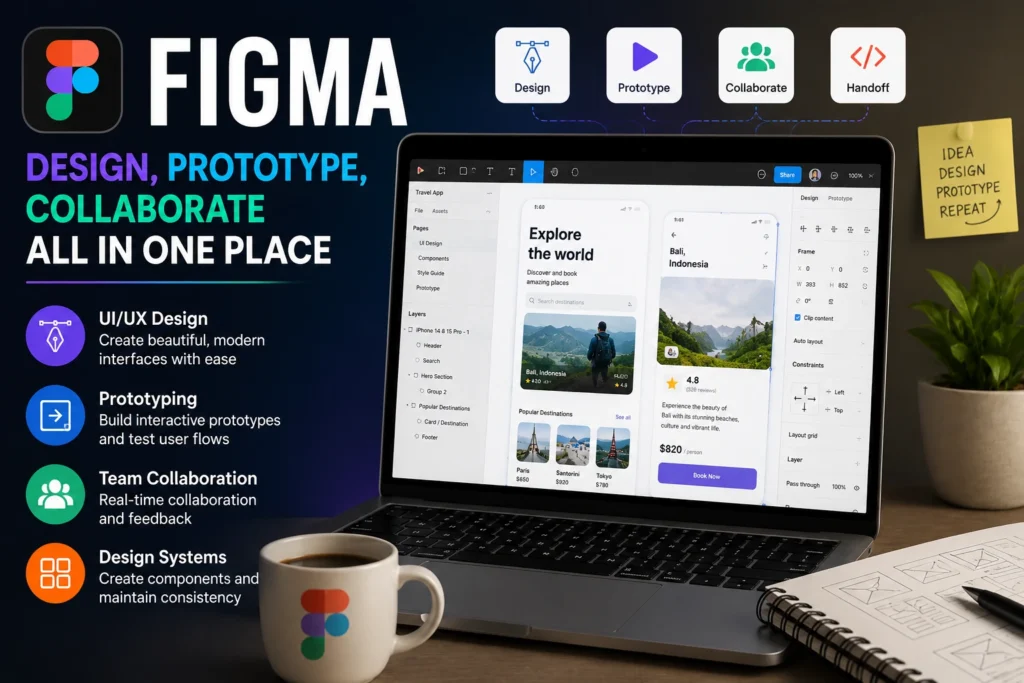
For big eLearning projects, this can save time. Because before development, you can show the screen design to manager or client. They can give feedback early. Figma is also good for making modern looking course screens. If you want your eLearning not to look like old PowerPoint, then Figma can help.
You don’t need to become full UI designer. Just learn basic frame, text, shapes, components, spacing, and export. Also team work is easy in Figma. Others can comment directly on design. So it is useful when many people are working on one project.
Camtasia
Camtasia is used for screen recording and video editing. It is very useful for making tutorial videos. If you want to teach how to use software, app, website, or online tool, Camtasia can help. You can record screen, add voice, zoom important area, add arrow, add text, and edit mistakes.
Many learners like videos because they can watch and follow step by step. Especially for software training, video is very useful. Camtasia is easier than big video editing tools like Premiere Pro. But it has enough features for training videos.
For instructional designers, this is a good skill. Because many jobs will ask for eLearning plus video creation. You can use Camtasia for product demo, how-to video, onboarding explanation, software walkthrough, and short training lessons.
One good Camtasia video in your portfolio can also help. It shows that you can explain things clearly, not just make slides.
Vyond
Vyond is used to create animated videos. It works in browser and has ready characters, backgrounds, props, actions, and scenes. This tool is useful when you want to explain soft skills or workplace situation. Like customer service, leadership, communication, workplace safety, harassment prevention, sales call, or HR policy.
Instead of shooting real video, you can create animated scene. That saves time and cost. Vyond is easy to start because it gives ready assets. You can search office, hospital, factory, shop, character, laptop, phone, and many things. Most assets match same style, so video looks clean.
You can also add voiceover, text, scene changes, and simple animations. For instructional designers, Vyond works nicely with Storyline. You can create short animated video in Vyond and add that inside eLearning course.
But one thing. Don’t make animation just for decoration. Use it only when it helps learner understand the situation better.
TalentLMS
TalentLMS is a Learning Management System. In simple words, LMS is a place where you upload courses and manage learners. Many beginners confuse authoring tool and LMS. Storyline, Rise, Captivate are used to create the course. LMS is used to give that course to learners, track completion, and see reports.
TalentLMS is easy compared to many other LMS platforms. You can create users, upload courses, assign training, check who completed, and see scores. This is useful for small companies and training teams.
If you learn one LMS, learning another LMS becomes easier. Because most LMS tools have same basic idea. Course, user, group, assignment, report, certificate. So you don’t need to learn all LMS tools. Learn one properly. Then you can understand others faster.
Moodle
Moodle is a popular open-source LMS. It is used in many schools, colleges, and learning projects. The good thing is, Moodle is flexible. You can create courses, add quizzes, assignments, forums, badges, and many activities.
But Moodle may feel little heavy for beginners. It has many settings. Sometimes setup and customization need technical knowledge. Still, Moodle is worth knowing if you want to work in education field. Colleges and training institutes may use Moodle because it is open-source and customizable.
For corporate jobs, you may see TalentLMS, Docebo, Absorb, 360Learning, or other LMS platforms. But Moodle is still a strong name in learning space.
PowerPoint
PowerPoint looks simple, but don’t ignore it. A lot of instructional design work still starts in PowerPoint. Storyboards, training slides, classroom materials, webinar decks, and rough course layouts are still made in PowerPoint.
If you know PowerPoint well, you can make clean slides, process diagrams, simple animation, icons, and visual learning pages. Also, PowerPoint helps you understand layout. Spacing, font size, alignment, color, and slide flow. These same design skills help in Storyline also.
Many beginners jump directly into advanced tools but their layout is not good. So first learn to make clean PowerPoint slides. It will help everywhere. PowerPoint is basic, yes. But basic does not mean useless.
Google Docs and Microsoft Word
Instructional design has lot of writing work. So document tools are also important. Before creating course, you may need to write learning objectives, course outline, storyboard, video script, quiz questions, learner guide, facilitator guide, and notes.
Google Docs is useful because team members can comment and edit together. Word is also used in many companies for formal documents. A good instructional designer should write clearly. Simple words. Clear steps. No confusion. Because learner should understand fast.
If your writing is confusing, even best tool cannot save the course. So writing tool may look boring, but it is very important in real work.
Which Tool Should You Learn First?
If you are beginner, don’t try to learn all tools at same time. That is the mistake many people make.
First learn PowerPoint properly. Then learn Canva for basic design. After that learn Rise because it is easy and gives fast result.
Then learn Storyline. This one will take more time, but it is very useful for jobs.
After that learn Camtasia for screen recording and one LMS like TalentLMS or Moodle. This gives you complete idea of creating and delivering a course.
Later you can learn Vyond, Captivate, Figma, Illustrator, or iSpring based on your career need.
This slow order is better. Because if you open 10 tools together, you will not finish anything.
Final Words
Instructional design tools can help you build better learning content. But tools alone will not make you a good instructional designer.
First understand the learner. What problem they have? What they need to do after training? Where they are making mistakes? What example will help them? After that only choose the tool.
If you are just starting, learn PowerPoint, Canva, Rise, Storyline, Camtasia, and one LMS. This is enough to make a good starting portfolio. Then slowly add Vyond, Captivate, Illustrator, Figma, or iSpring based on your work.
Don’t rush too much. Learn one tool, create one sample project, then move to next. That is better than watching 50 tutorials and not finishing even one project.
Instructional design is growing because companies need online training, onboarding, compliance courses, product training, and skill development. So learning these tools can really help your career.
But keep it simple. Good learning design comes from clear thinking first. Software comes after that.